Introduction
Minecraft’s default user interface has a certain charm, but after hours of mining and crafting, those bright vanilla menus can feel a bit harsh on the eyes. A dark, clean interface not only reduces strain but also gives the game a modern, polished look. The FMN Dark Gui resource pack steps in to transform every inventory, crafting table, and modded menu into a sleek, shadowy workspace. Whether you are deep into a modded adventure or just want a consistent dark theme across all your screens, this pack delivers a cohesive visual overhaul without any complicated setup.
What Is FMN Dark Gui?
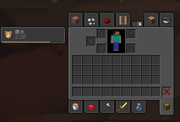
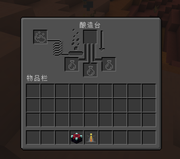
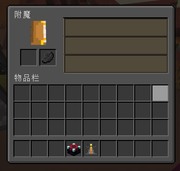
FMN Dark Gui is a resource pack originally created for the FMN modpack, designed to make every graphical user interface neat, dark, and easy on the eyes. It replaces the bright, sometimes inconsistent backgrounds of vanilla and modded menus with deep, muted tones and clean borders. Because it is released into the public domain, you can freely add it to your own projects, modpacks, or private worlds without worrying about credits or permissions. The pack focuses on simplicity and broad compatibility, so even if it was tailored for one specific modpack, it works seamlessly with a large number of popular mods.
Key Features of the FMN Dark Gui Resource Pack
This resource pack stands out because of its straightforward approach. Instead of completely redesigning every icon, it preserves the original functionality while applying a consistent dark theme. Here is what you can expect:
- Uniform dark backgrounds across all standard GUI elements, including the player inventory, crafting table, furnace, and chests.
- Support for dozens of modded interfaces, so your modded storage systems, quest books, and custom menus all match the same dark aesthetic.
- Public domain license, meaning you can bundle it with your own modpacks or use it as a base for further customization without any legal hurdles.
- Lightweight file size that does not impact game performance, even on lower-end systems.
- Compatibility with the latest Minecraft versions where the FMN modpack runs, though some textures may occasionally be out of date due to infrequent updates.
Compatibility with Popular Mods
Although FMN Dark Gui was built for a specific modpack, it has been tested and works beautifully with a wide range of mods that add custom interfaces. If you use any of the following, you can expect a consistent dark appearance across all menus:
- Cursor Mod
- Advancement Plaques
- Alloygery
- Animal Feeding Trough
- BetterEnd
- Big Beacons
- Bountiful
- Culinaire
- Disenchanter
- Doggo Mod
- Drink Beer
- Expanded Storage
- Extra Alchemy
- Farmer's Delight
- Farming for Blockheads
- Guard Villagers
- The Guild
- Inmis
- Inventory Profiles Next
- LevelZ
- m-tweaks
- Numismatic Overhaul
- Origins
- Probably Chests
- Queen Cats & Dogs
- Reroll
- Tool Leveling+
- TrashSlot
- Waystones
- Wild Tool Access
- Wolves With Armor
Because the pack is not frequently updated, some newer mods or heavily customized interfaces might show a few unthemed elements. However, the majority of players will find that their entire modded experience suddenly looks unified and far more comfortable during long play sessions.
How to Install and Use FMN Dark Gui
Adding a resource pack in Minecraft is straightforward. Download the FMN Dark Gui zip file, place it into your resourcepacks folder, and activate it from the in-game options menu. If you are using a modded client, the process remains exactly the same. For those who enjoy a more streamlined approach, you can easily install this pack via the foxygame.net launcher, which lets you download resource packs and mods directly from its user-friendly menu, saving time and keeping your game organized without manually hunting for files. Once activated, the dark theme applies instantly to all compatible GUIs, and you can continue playing without any additional configuration.
Benefits of a Dark GUI in Minecraft
Switching to a dark interface offers more than just a visual refresh. Many players find that a darker palette reduces eye fatigue during nighttime gaming sessions. It also helps important item slots and buttons stand out more clearly against the muted background. When you combine dozens of mods, each with its own GUI style, a uniform dark resource pack like FMN Dark Gui creates a sense of cohesion that makes the whole game feel more polished. Whether you are managing complex storage networks or simply browsing your achievements, the consistent dark theme keeps you focused on the gameplay rather than the interface.
Conclusion
FMN Dark Gui is a simple yet effective resource pack that brings a much-needed dark mode to Minecraft’s interfaces, both vanilla and modded. Its public domain status, broad mod compatibility, and lightweight design make it an excellent choice for anyone looking to reduce visual clutter and give their game a modern, unified look. While it may not receive constant updates, it already covers an impressive list of popular mods and remains a reliable option for players who value comfort and style. Give it a try, and you might find that once you go dark, you never want to go back to the bright default menus.